Minimum Version Required: 24.01
Steps
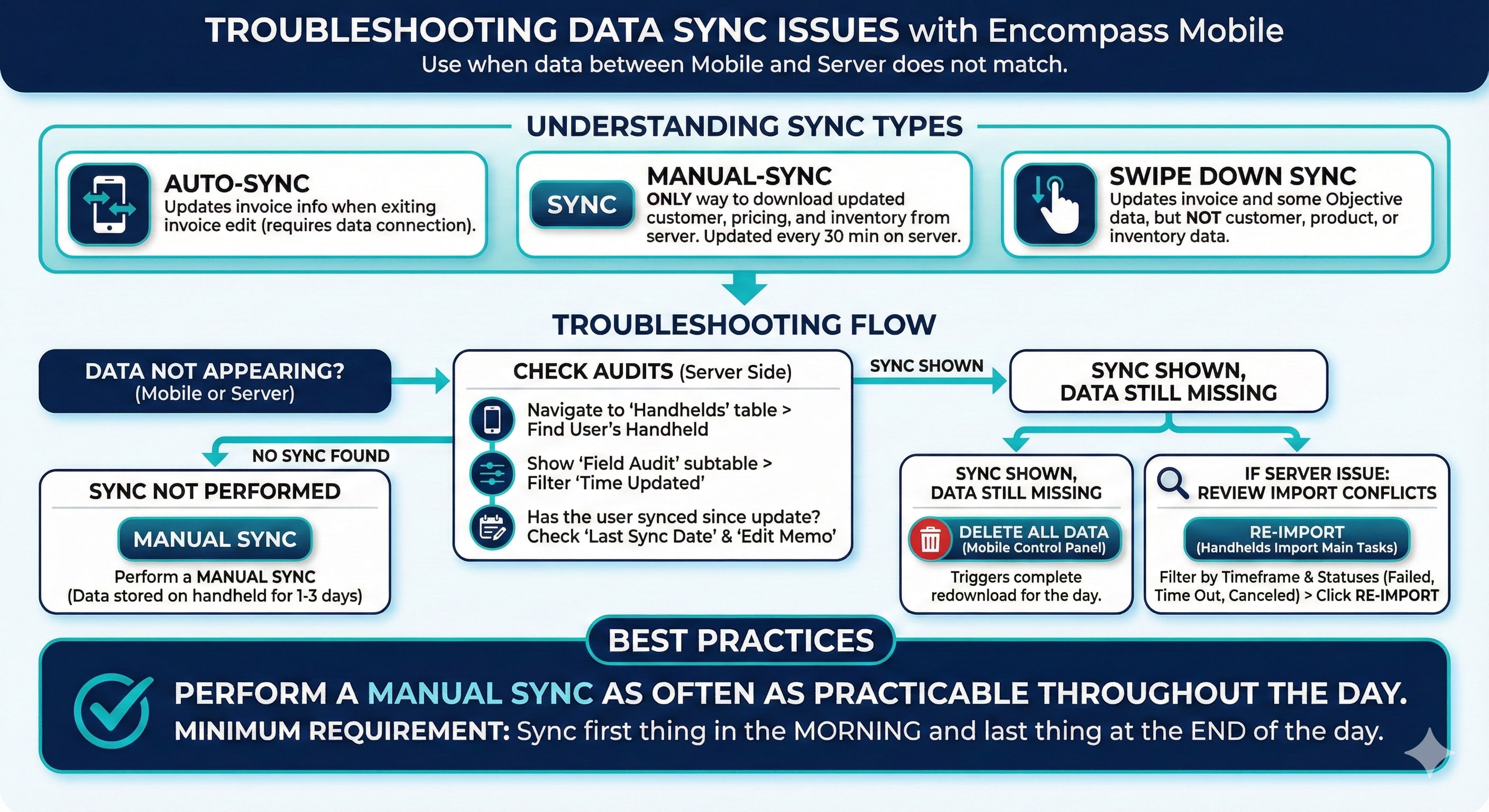
Use this troubleshooting guide when data entered in Encompass Mobile does not appear on the server, or, when changes made on the server to not appear in Encompass Mobile.
Any time data is imported to the server from Encompass Mobile, it requires a sync. There are three different types of sync:
Auto-sync: This happens any time invoice information is updated when the user backs out of invoice edit as long as there is a data connection.
Manual-sync: This happens any time the user taps a “Sync” button in Encompass Mobile. This is the only way to download updated customer, pricing and inventory information from the server. The package that updates manual sync data is updated on the server every 30 minutes.
Swipe Down Sync: The Swipe Down sync happens when users swipe down from the top of Encompass Mobile. The Swipe Down sync updates invoice and some Objective data but not any customer, product or inventory data.
Check the audits.
Navigate to the Handhelds table
Find the user’s handheld that was used to make the update and view the record. The easiest way to find this is to filter to the user’s name.
Show the Field Audit subtable
Filter the time updated field to include the time that changes were made to the record on Encompass mobile. Has the user synced after the update was made? The audit will show an update to “Last Sync Date” and will show the exact time the sync was performed. The Edit Memo will show which type of sync was performed.

Has a sync been performed since the action was taken?
If not: Data is stored in the handheld for 1-3 days after the edit. Have them try performing a manual sync to upload the data if you are looking within that timeframe.
If an auto or swipe down sync is shown, but no manual sync, try performing a manual sync to ensure a full exchange of data.
If data still looks unexpected on Encompass Mobile navigate to the Control Panel and select “Delete all current data”. This will trigger a complete redownload of the user’s data for the day
If data is still not appearing as expected on the server:
Review Import Conflicts, including deleted Import Conflicts. If you are confident the data is not in Import Conflicts, then
Navigate to the Handhelds Import Main Tasks table.
Filter the Time Updated column to show the timeframe you are reviewing
Filter the tasks to the statuses of: Failed, Time Out and Canceled
Click “re-import” next to the applicable task
Fields And Definitions
Any time data is imported to the server from Encompass Mobile, it requires a sync. There are three different types of sync:
Auto-sync: This happens any time invoice information is updated when the user backs out of invoice edit as long as there is a data connection.
Manual-sync: This happens any time the user taps a “Sync” button in Encompass Mobile. This is the only way to download updated customer, pricing and inventory information from the server. The package that updates manual sync data is updated on the server every 30 minutes.
Swipe Down Sync: The Swipe Down sync happens when users swipe down from the top of Encompass Mobile. The Swipe Down sync updates invoice and some Objective data but not any customer, product or inventory data.
Best Practices
The best practice when working with Encompass Mobile is to perform a Manual Sync as often as pracicable throughout the day. The minimum requirement is to sync first thing in the morning and last thing at the end of the day.