Minimum Version Required: 22.01
Steps
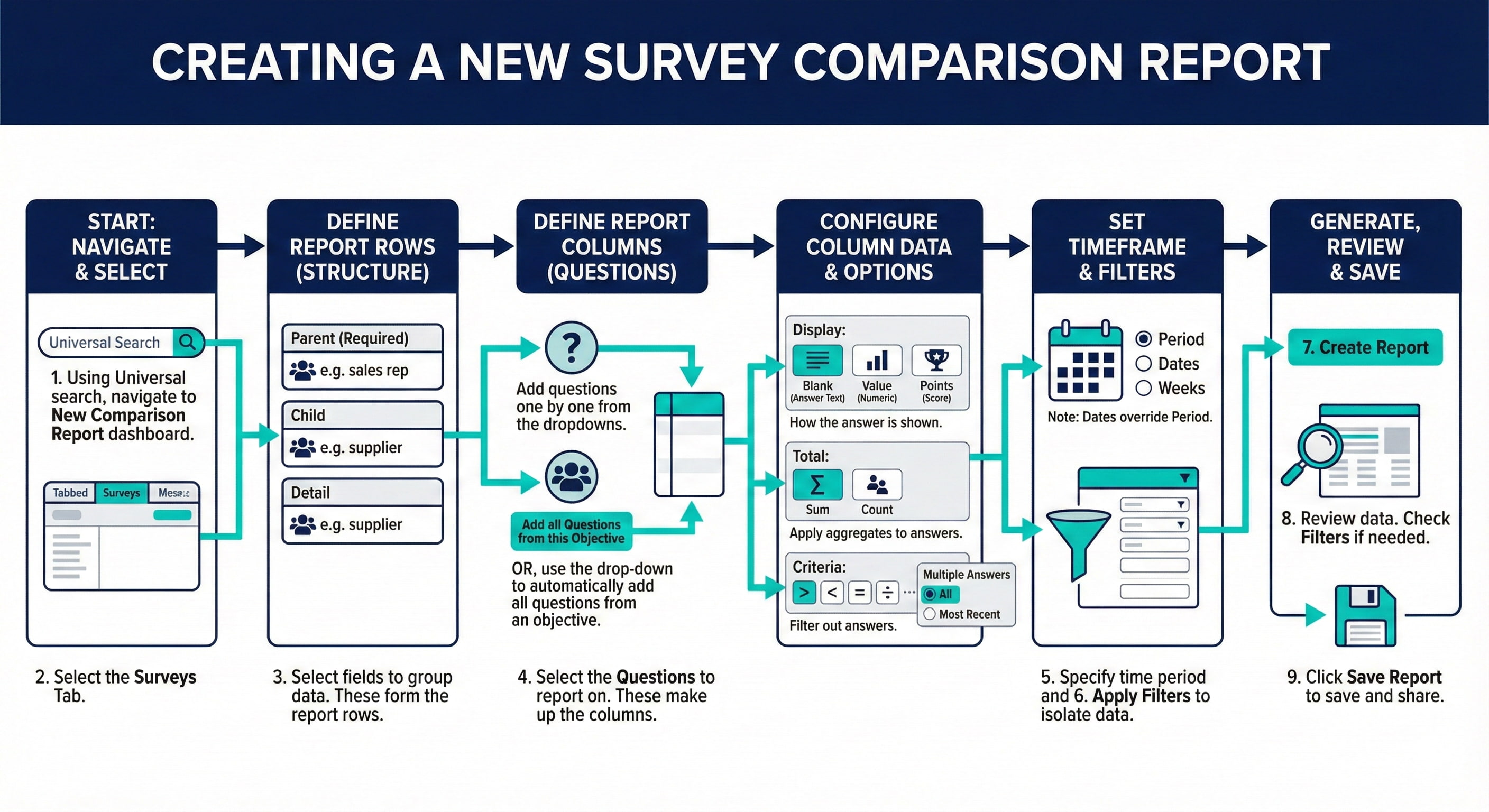
How to create a new Survey Comparison Report
1. Using Universal search, navigate to the New Comparison Report dashboard
2. Select the Surveys Tab
3. Report Set Up: The Parent, Child, and Detail fields are what make up the rows of your report.
4. Select the Questions from your Objective or Survey that you'd like to report on in the Columns section.
**Use the Add all Questions drop down box and button to have the system add all instead of 1 by 1
5. Period, Dates, and Weeks specify an exact time period to be reported on
Note: If you select Dates and Period, Dates will override Period
6. Apply Filters to isolate specific table or field information for the report
7. Click Create Report when rows, columns, periods, and filters are applied as needed
8. If a report is not showing the data you are expecting, review the applied filters. The Filters tab allows you to view filters without editing the report.
9. Click Save Report when complete. Once saved, you can make future changes or share with other Users
Fields And Definitions
Parent/Child/Detail* - ‘Group By’ fields of the report that allow totaling or natural breaks to be displayed by sales rep, supplier or other groups of data.
Display* - How the answer to the question is displayed on the report.
-Blank - SurveyAnswers.AnswerText
-Value - SurveyQuestionValues.Value
-Points - SurveyQuestionValues.Points
Total* - Apply aggregates to survey answers
Criteria* - Apply greater than (>)(>=), less than (<)(<=), equal to (=), not equals (<>)
Filters* - Limit the data to specific results
Time Period/Date Range Type Filters* - All the date range filters are similar to each other. The difference is just what you can select to filter on. The options are Predefined Periods, Date Ranges, and Week Ranges
Multiple Survey Answers - How many prior responses to include in the report results.
-Include All Survey Answers In Results - No restrictions
-Only Include Last Answer Captured - Results include only the most recent occurence of an answer
-Only Include Last Objective Completed - Results include only the most recently complete survey