Minimum Version Required: 22.01
Pre-Conditions
Must have the DashboardEdit permission to be able edit dashboards to get access to the Code Block editor.
Steps
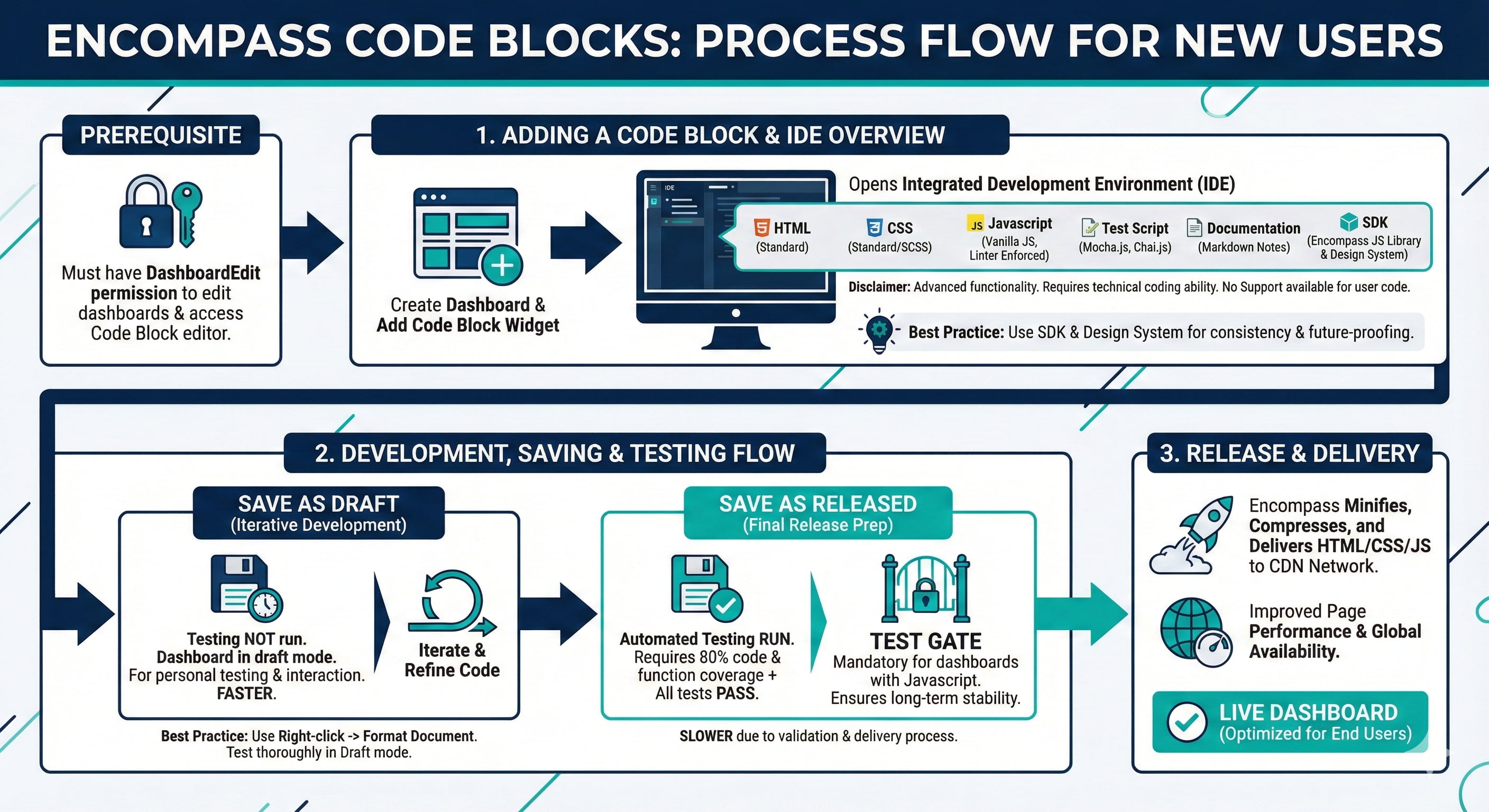
Encompass Code Blocks are a way to create custom HTML, CSS, and Javascript pages on any dashboard.
Code Blocks can fill the entire page, they can just be a small component of the page, or anything inbetween.
Disclaimer: Code Blocks are advanced functionality and require technical ability to write code.
Encompass Support cannot help with writing, debugging, or troubleshooting the users code.
Adding a Code Block
1. After creating a dashboard, add the code block widget.
2. After adding a code block to the page, there will be an integrated development environment (IDE) specifically for HTML, CSS, Javascript, and automated testing through Mocha.js.
3. Each tab across the top is where the corresponding HTML, CSS, and Javascript code will be placed.
HTML
This tab is standard HTML.
CSS
This tab supports standard CSS, or SCSS.
Javascript
This tab contains all of the javascript code for the Code Block.
There is a linter (eslint) enforced in the javascript tab.
This ensures that the javascript code adhears to the Encompass standards for maintainability and performance, and cannot be turned off.
Encompass is written entirely in vanilla Javascript, no frameworks. But users can import a framework of their chosing in the code block itself (see EC_Fmt.LoadScript() in the SDK)
Test Script
This tab contains mocha testing scripts that are executed during every 'Save As Released' process on the dashboard, and during every major version release of Encompass.
Run these tests manually using the 'Run Test' button at the top of the page.
Documentation
This is markdown code.
It is only shown in the Code Block editor, and is intended as a place to leave documentation and notes for other developers or the users future self (similar to a ReadMe.md file).
SDK
This is a documentation tab for the Encompass Javascript SDK and all of the functions/helpers built into it.
It also includes links to the design system for help keep code blocks consistent in UI and behavior with the rest of the system.
Releasing a dashboard
1. When finished with the code block, 'Save' to exit the Code Block Editor.
2. Then save the dashboard.
3. Whenever a dashboard is saved there are options for:
"Save as Draft": Testing is not run, dashboard is in draft mode for the user to interact with and do personal testing
"Save as Released": If the system detects that it has at least one Code Block on it, it will run the Test Script on the code. The Test Script must have 80% code and function coverage, and pass all tests to be allowed to release the dashboard. This ensures that Encompass can automatically tests and keep the dashboard working long into the future. If the page has no Javascript, then testing is not required.
4. When a dashboard is released, Encompass will also minify, compress, and delivery the HTML/CSS/JS to a CDN network to improve page performance.
Note: This is why 'Save as Released' is slower, and it is recommended to not use this option until the dashboard is finished and ready.
Fields And Definitions
Mocha.js: the testing framework that the user tests in the 'Test Script' tab run on. Example code for this is available in the Test Script tab, on the right side. More information is available here.
SDK: Software Development Kit - Encompass javascript library of tools that make building pages that behave like the rest of Encompass easier.
Best Practices
Use the right-click -> Format Document option to make the code easier to read.
Do not use 'Save As Released' until the dashboard is finished, has been tested in 'Save as Draft', and is ready for all users to see. 'Save As Released' is a much slower process that includes global delivery of the HTML/CSS/JS to improve page performance for end users.
Utilize the SDK whenever possible. This ensures that future changes to the underlying platform do not break the code, because Encompass maintains the SDK to continue working during those changes.
Utilize the Encompass Design System to ensure the pages have a cohesive and consistent design with the rest of the system.