Minimum Version Required: 22.01
Steps
New Table Import
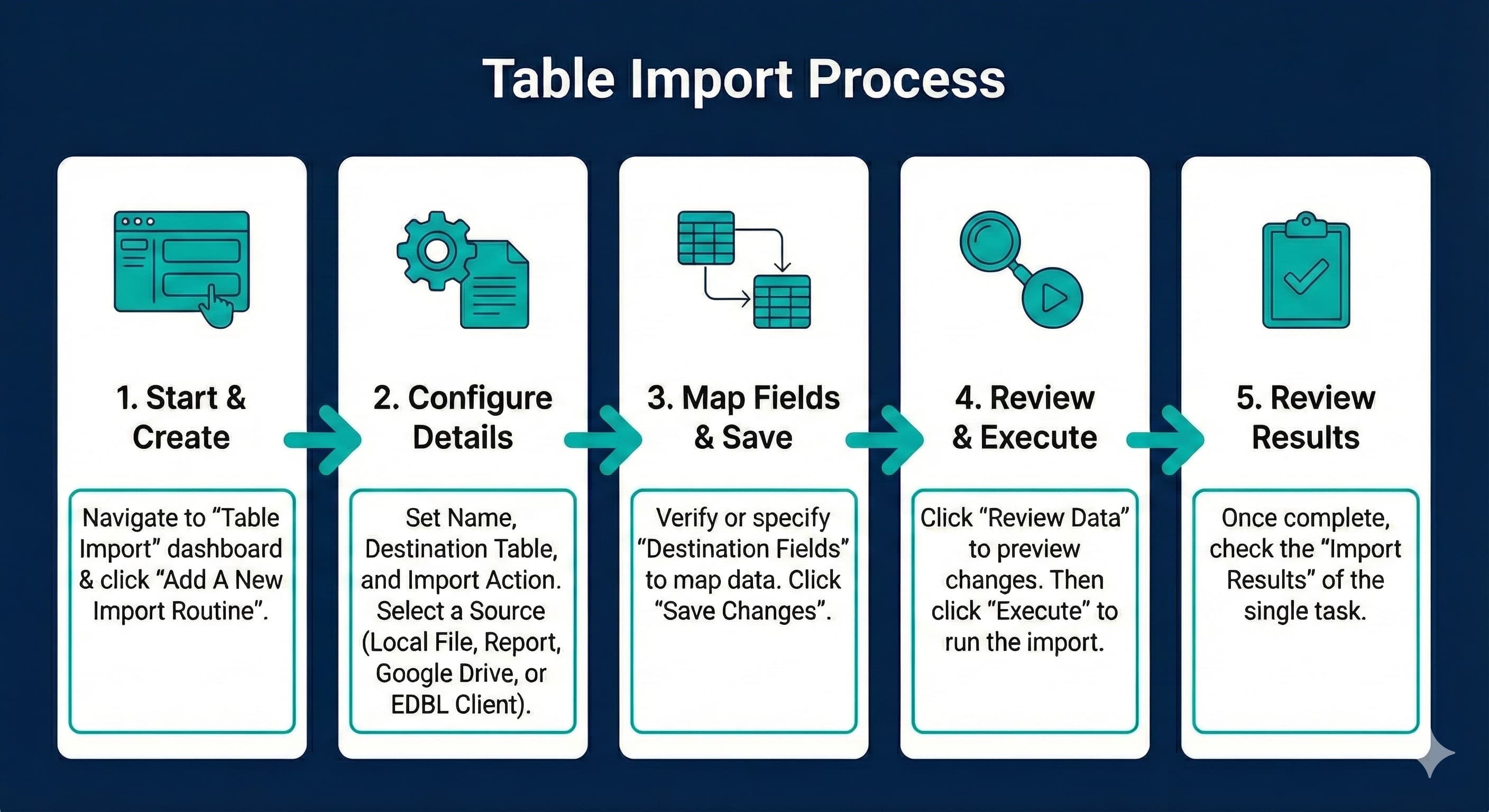
1. Navigate to the Table Import dashboard using the Universal Search bar.
2. Click the Add A New Import Routine button. You will be redirected to the Table Import Wizard.
3. On the Import Routine Tab, set the Import Routine Name, the Destination Table (the table you would like to import to), and specify your ImportAction.
In the Source section, select one of the following options:
a) Use Local File - Will allow you to browse your computer for a .csv or .xlsx file
b) Use Report - This will allow you to find your existing report. Click on your report then click the Select button
c) Use Google Drive - This will allow you to browse your Google Drive account for spreadsheet files
d) Use EDBL Client
4. Click Save Changes
After you click Save Changes, you will be directed to the Map Fields Section on the Import Fields Tab
If structured properly, Encompass will identify what fields in your file/report should be mapped to fields in your Destination Table. If not, specify the Destination Field. Then click Save Changes
You will then be directed to the Import Tasks tab. Each time the table import is done, we will create an import task with the source data attached
5. Click Review Data to preview the records that will be changed as a result of the Import Routine.
6. Click Execute to run the Import Routine for the first time.
Once the single Import Task is complete, you can review the Import Results
NOTE: You can also Schedule your Import Routine by going to the Import Scheduling tab. Choose the Import Project and set the Schedule to the frequency you want your import to run.