Minimum Version Required: 22.01
Steps
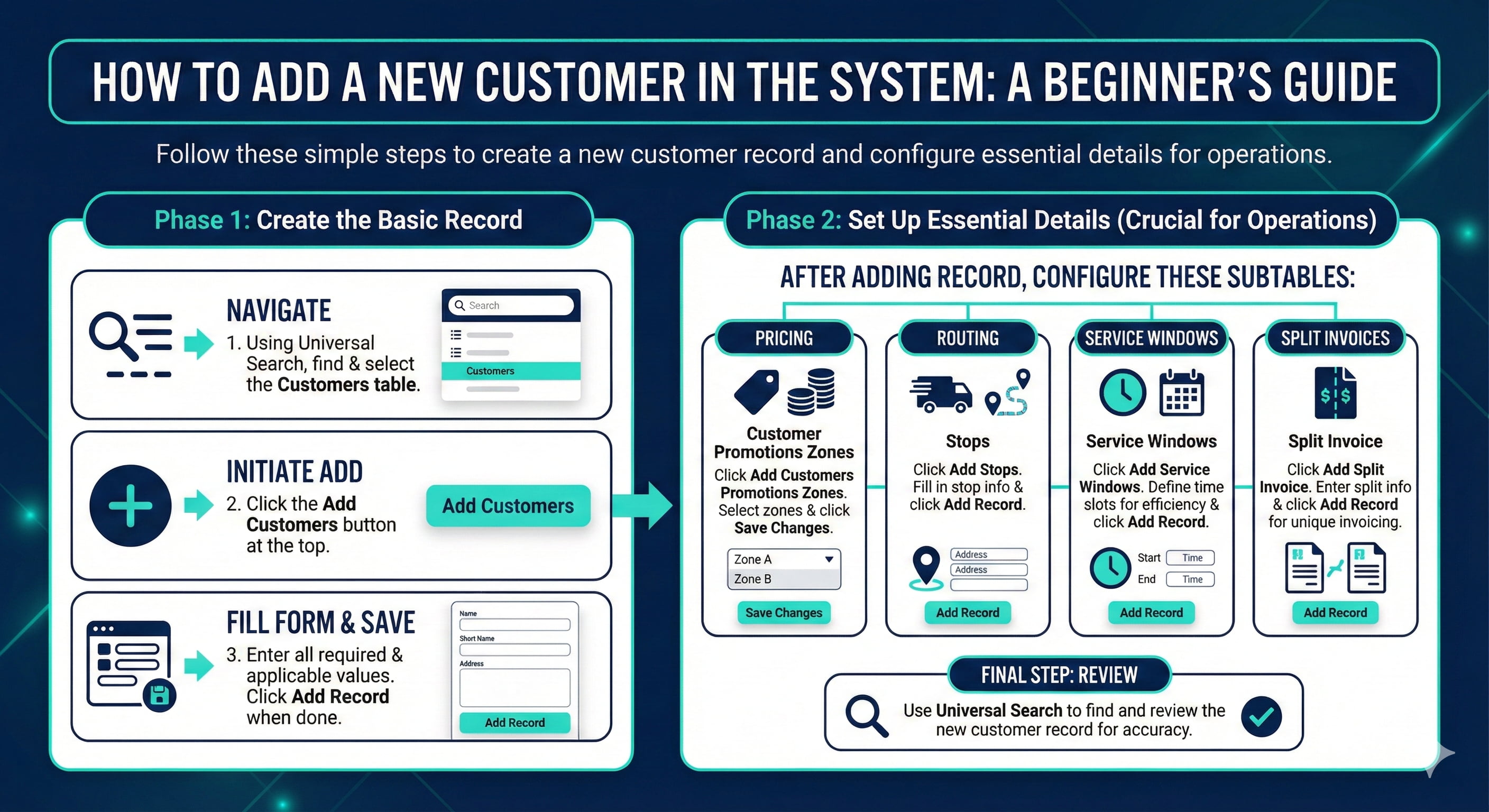
How to Add a new Customer on the Server
1. Using Universal Search, navigate to the Customers table
2. Click the Add Customers button
3. Enter values to all required and applicable optional fields displayed in the Add Customers form and click the Add Record button when complete
4. Set up customer pricing, routing, service windows, and split invoices
Set up pricing by adding Customers Promotions Zones:
Click Add Customers Promotions Zones
Select the promotion zones then click Save Changes
Set up Routing by adding Stops
Click Add Stops
Fill in the Stop information needed for the customer then click Add Record
Set up Service Windows. This allows you to optimize your routes to be more efficient using Encompass' routing tools in the Delivery Optimizer
Click Add Service Windows
Fill in the information needed then click Add Record
Set up or add your Split Invoice
Click Add Split Invoice
Fill in the Split Invoices information needed for the customer then click Add Record
Fields And Definitions
FAQs
Q: Why are some fields not editable?
A: Many fields on the Customers table are inherited from a record on another table. This means that the field cannot be edited on the Customers table and must be edited on the table from which it is inherited. Here are a few examples:
Customer Account Type: Inherited from the Customer Type field.
Phone Number and Email: Inherited from the Primary Contact field.
Salesman: Inherited from the Assigned Users table.
Location: Inherited from the Distribution Area field.
Q: Can I add custom fields to the Customers table?
A: Yes, through the Table Map.
Q: How do I create new Customer contacts and link them to a Customer?
A: Through the Users and Customers Users tables.
Q: What will happen when the Seasonal Month/Day fields are populated?
A: The Customer record will only be in the Active status between the Seasonal Open Month/Day and Seasonal Close/Month Day. When not within the Seasonal dates, the Customer Record will be set to the Inactive status automatically and reactivated upon the Open date.
Q: Can I add multiple Customers at once?
A: Yes, using a Table Import to the Customers table. You will need a file containing Customer information for all of the required fields on the Customers table to be able to import.