Minimum Version Required: 22.01
Steps
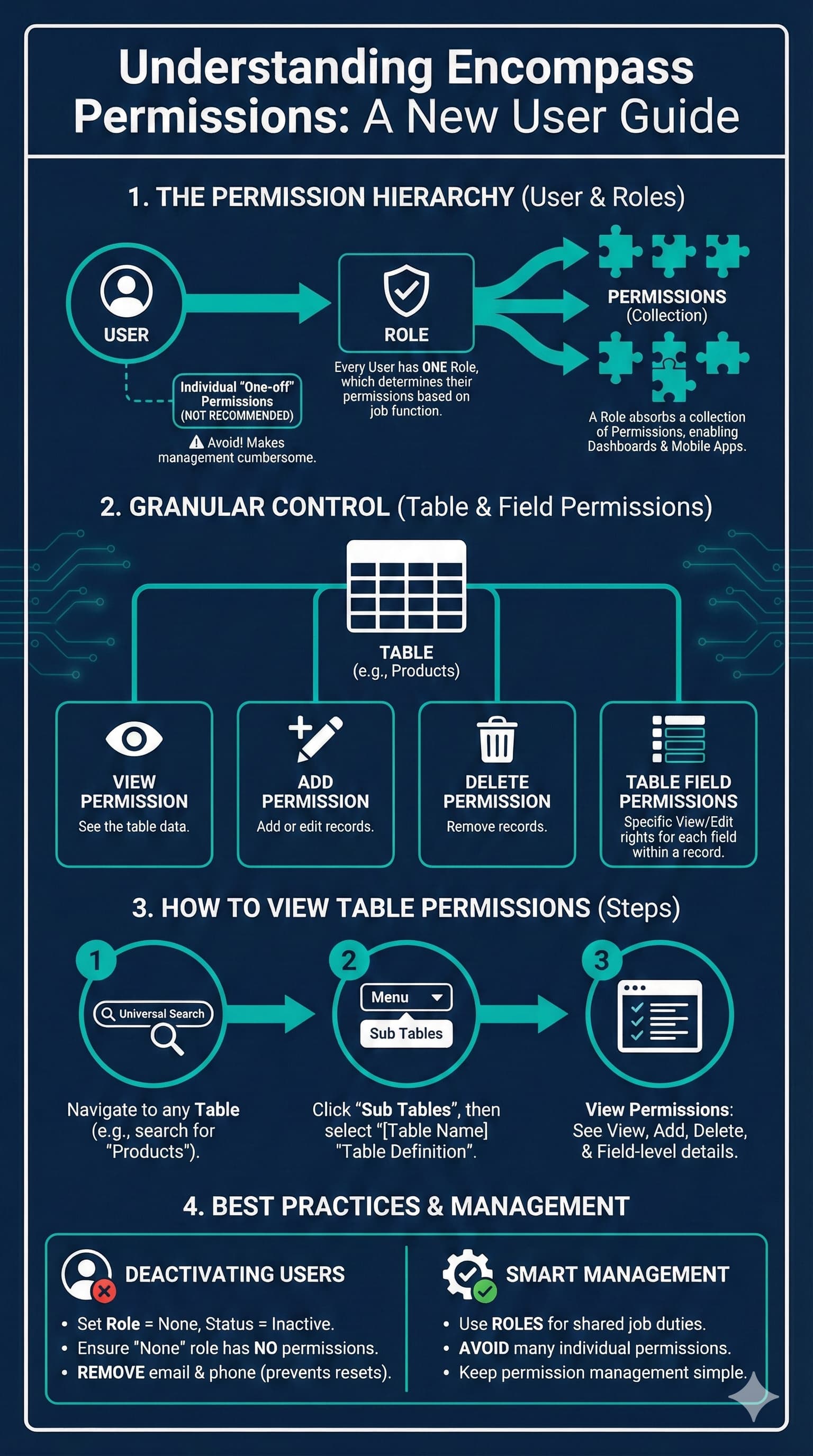
How to View What Permissions are needed to Interact With a Table in Encompass
1. Navigate to any Table using the Universal Search bar (In this example the Products table is used).
2. Click Sub Tables, Then select Products "Table Definition".
3. Here users can view the different Permissions for that table:
View Permission - This is the Permission required to view the 'Products' table.
Add Permission - This is the Permission required to add records to the 'Products' table or edit existing ones.
Delete Permission - This is the Permission required to delete records from the 'Products' table.
Table Fields Permissions - Each field in a table also has Permissions required to view and edit that field. Users can see what permissions are required for each field on this sub-table.
Fields And Definitions
Users
Every person who logs into Encompass must have a User record. Each User record needs specific permissions assigned to control what that User can do throughout the system.
Note:
1. A User is assigned to one Role that holds their permissions.
2. Users can be assigned to one or many Locations.
3. Users can also be given additional individual, or ‘one-off’ User Permissions outside of the Role.
Full Name - User’s full name or descriptive name.
User Name - This is what the user uses for logging in along with their password.
Role - Each user has a Role, which determines the permissions that a user has. A user has one and only one Role.
User Type - Collection of Roles. This determines whether the user can see data for all Customers, for all Customers in a Chain, or for a Single Customer.
Roles
A Role is a collection of permissions. Generally, a Role is related to a User’s title or job functions. Assigning a User a Role allows that user to absorb all of the permissions of that Role instead of needing each permission to be added individually to the User record.
Note:
1. A User can only be assigned to one Role.
2. Roles control which Dashboards and Mobile Applications a User sees.
Role - Typically named to be a description of a user's job within the company.
Roles Permissions
View the Permissions that make up a Role by viewing Roles Permissions as a subtable of the Role.
Best Practices
If a User no longer works for the company set User’s Role = None and Status = Inactive.
a. Ensure ‘None’ Role has no Permissions.
b. Remove email address and phone number from the User record to prevent password resets.
Avoid granting a lot of permissions to individual users. It makes Permission management more cumbersome. Generally speaking if 2 users share the same job duties, there should be a Role created to hold all of the permissions that those Users should have.