Minimum Version Required: 23.01
Steps
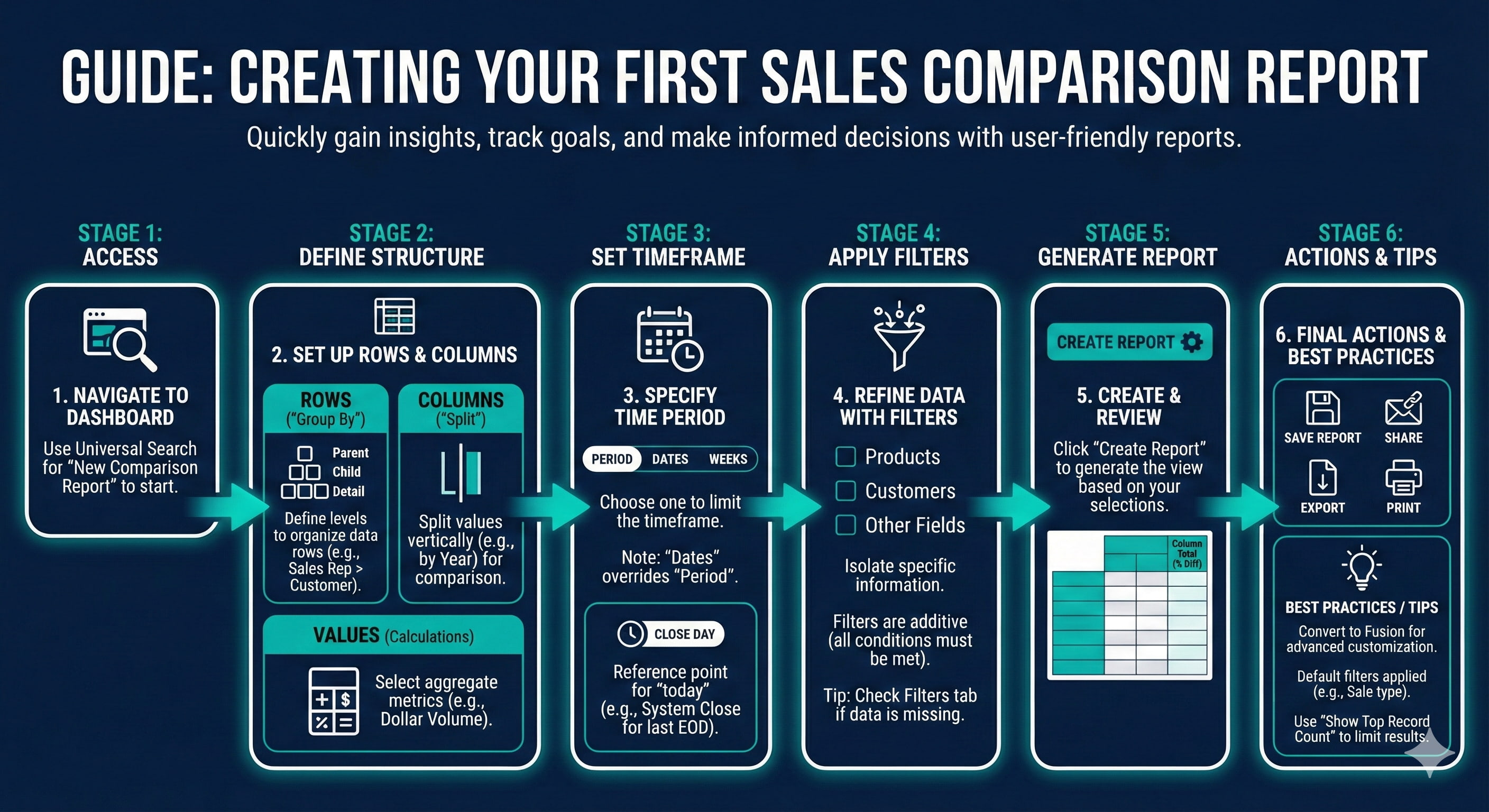
How To Create A New Sales Comparison Report
1. Using Universal search, navigate to the New Comparison Report dashboard
2. Report Set Up: The Parent, Child, and Detail fields are what make up the rows of your report. Next, define the column and add Values
3. Period, Dates, and Weeks specify an exact time period to be reported on
Note: If you select Dates and Period, Dates will override Period
4. Apply Filters to isolate specific table or field information for the report
5. Click Create Report when rows, columns, periods, and filters are applied as needed
6. If a report is not showing the data you are expecting, chances are the filters are the cause, and the Filters tab allows you to view filters without editing the report
7. Click Save Report when complete. Once saved, you can make future changes or share with other Users
For further training on Sales Comparison Reports watch: Comparison Reports Skills Kickstart
Fields And Definitions
Edit
Parent/Child/Detail - These are the 'Group By' fields of the report
Column - A special type of 'Group By' that splits out Values into the selected Column data.
Values - Aggregate Values that evaluate the Group Bys. If unsure of how a Value is calculated, ask Bev or visit Common Report Field Definitions - Values.
Display - Graph and Chart options that can be added to the report
Column Totals - Performs a calculation between the values in each Column. For example, the percent difference in sales between years.
Show Grand Total - Populates an extra row in the report that totals that displays an overall total of the Values.
Column Heading Format - Determines what is displayed in the headings of the report.
Show Top Record Count - Limits the data displayed in the report to a set number of records in either the Parent, Child, Detail or a combination. Enter the number of records to return in the corresponding box.
Filters - Limit the data to specific results. Filters are additive meaning that when more than one filter is set, the results must meet all of the filter selections to be displayed.
Time Period/Date Range Type Filters - All the date range filters are similar to each other. The difference is just what you can select to filter on. The options are Predefined Periods, Date Ranges, and Week Ranges
Close Day - Acts as a reference point for calculating periods in your reports. In other words, determines what "today" is when the report is run.
-None: This uses today's date as the reference point. It's often recommended as it provides the most current data.
-System Close: This uses the last date when you ran End of Day in Encompass as the reference point.
-Other options may include Yesterday, Today, Tomorrow, and Next Delivery Date.
Select Products and Select Customers - Allows for search functionality to find/search for specific Products or Customers to filter on.
View
Edit - Returns to the Report Edit screen
Save Report - Save the current version of the report to your Saved Reports.
Share - Send the report via Email, Text Message, or Quick Link.
Export - Download a copy of the report via Excel, CSV or Web Query View.
Print - Opens print settings pop-out to set how to print the report.
Convert To Fusion - converts the Sales Comparison Report to the Fusion format for further customization.
Filters - Shows all filters applied to the report, when the report was created and the cache created time.
Data Connections - Shows the tables being used in the report and the last time the report was updated with new data from those tables.
Best Practices
The Parent/Child Detail, Colums, and Values sections are made up of set values available to select from. If the field or value you are looking for is not available, a Fusion Report may be required.
Sales Comparison Reports can be converted to Fusion. Build as much of the sales report as you can in Comparison, then convert to Fusion to customize further.
Comparison Sales Reports have 3 default sales filters that are applied by default.
- Include In Sales Report By Default = True
- Customer Account Type = Sale
- Invoice Trans Num Unit <> 0