Minimum Version Required: 22.01
Steps
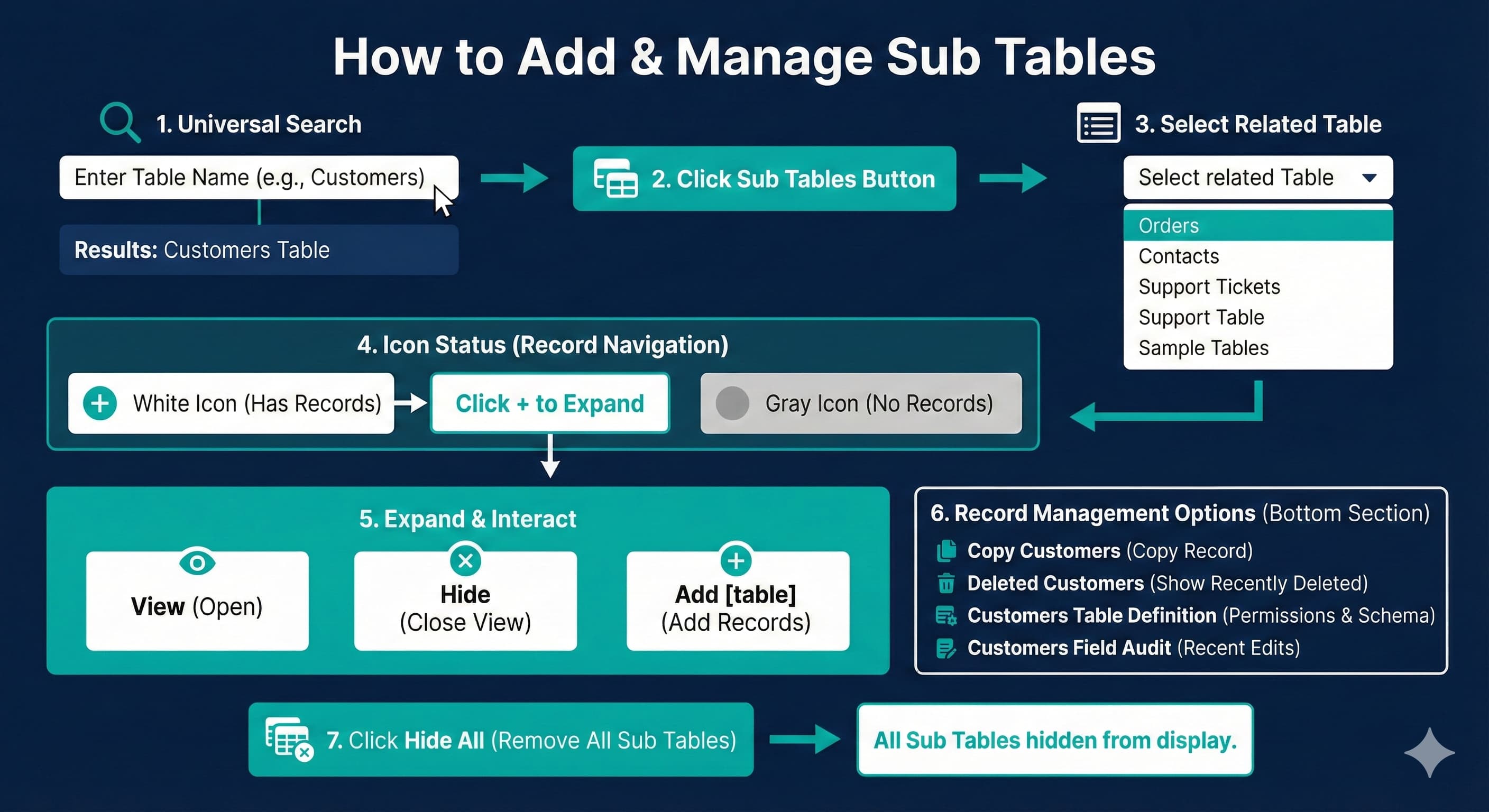
How to Add Sub Tables to a Record or Table View
1. Using Universal Search, enter the name of a table (Example: Customers).
2. Click the Sub Tables button.
3. Click to select a related table from the list.
4. The color of the record’s navigation menu icons indicates if the record has related Sub Table records:
White = the record has related Sub Table records.
Gray = the record does not have related Sub Table records.
5. Click the + icon on a white row to expand.
View - open the Sub Table.
Hide - close the Sub Table View.
Add [table] - add records to this Sub Table.
6. The bottom section of the Sub Tables menu shows record management options:
Copy Customers - Copies an individual record.
Deleted Customers - Shows records recently deleted from this Table.
Customers Table Definition - Displays the permissions and schema information for this Table.
Customers Field Audit - Shows recent record edits made to data in this Table.
7. If Sub Tables are selected to display, click the Hide All option to remove all sub tables from display.