Minimum Version Required: 22.10
Steps
From the Connect Summit 2022
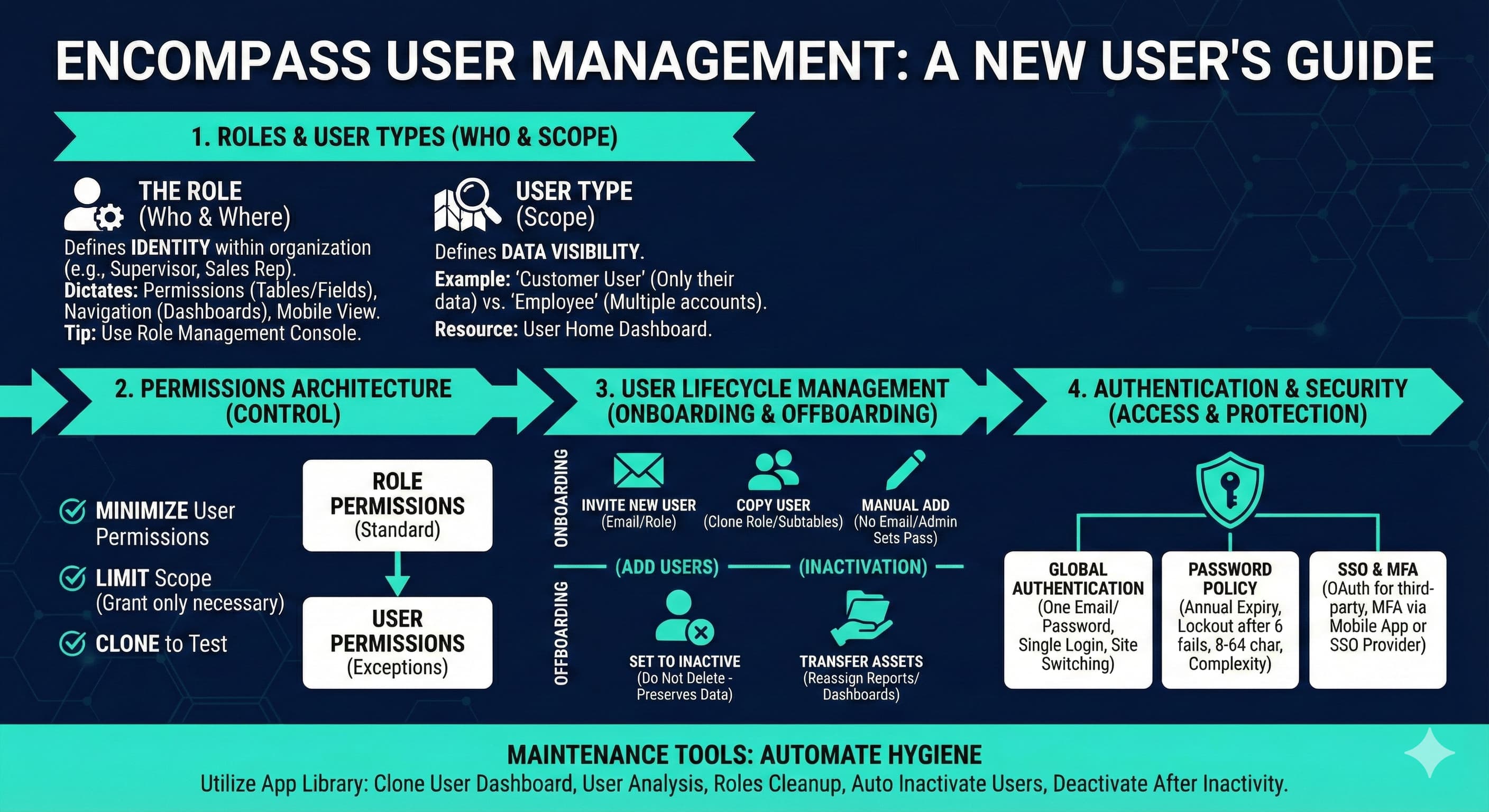
User Management Best Practices
1. Overview
This guide outlines the core strategies for managing users within the Encompass ecosystem. The objective is to streamline data access, maintain security, and ensure flexibility for organizational nuances.
2. Roles and User Types
Understanding the hierarchy of access is the first step to effective user management.
The Role (The "Who" and "Where")
Role defines who the user is within the organization (e.g., Warehouse Supervisor, Sales Rep). It dictates:
Permissions: Access to specific tables and fields.
Navigation: Which dashboards and reports are visible.
Mobile Experience: The interface view on Encompass Mobile.
> Tip: Use the Role Management Console dashboard to compare two roles side-by-side. This helps identify discrepancies in access or dashboard visibility between different job functions.
User Types (The "Scope")
User Types function one level above Roles. They define the scope of data a user can access.
Example: A *Customer User* type limits the user to seeing only data relevant to their specific customer account (e.g., their invoices), whereas an *Employee* type might see data across multiple accounts based on assignment.
Resource: Visit the **User Home Dashboard** for detailed definitions and restriction settings.
3. Permissions Architecture
Permissions are the specific controls that allow users to view, edit, or delete data.
Hierarchy of Assignment
1. Role Permissions (Standard): Assigned to the Role itself. Every user in this role inherits these permissions automatically. This is the preferred method.
2. User Permissions (Exceptions): Assigned directly to an individual user. This overrides or adds to their role-based permissions.
Best Practices for Permissions
Minimize User Permissions: Avoid stacking individual permissions on specific users. If a user needs different access, consider if their Role is accurately defined.
Limit Scope: Grant only the permissions necessary for the user's specific duties to prevent data accidents.
Clone to Test: If you are unsure about a permission set, clone the user profile to test exactly what they can see and do.
4. User Lifecycle Management
Onboarding: Adding New Users
There are three primary methods to add users:
Method | Best Use Case | Description |
Invite New User Dashboard | Standard/Recommended | Enter Name/Email/Role. Sends an email invite allowing the user to set their own password |
Copy User (Subtables) | Cloning Roles | Select an existing user with similar duties and use "Subtables > Copy Users." Ensures all roles/settings match the peer |
Manual Add (Users Table) | No Email Access | Manually enter details in the Users table. Requires the admin to set a temporary password manually |
Offboarding: Inactivation
When a user leaves the company or changes roles:
Set to Inactive: Immediately change the status in the Users table to **Inactive**.
Do Not Delete: Inactivation preserves historical data (logs, orders written) but prevents login.
Transfer Assets: Reassign ownership of any scheduled reports or dashboards owned by the inactive user.
5. Authentication & Security
Global Authentication
Encompass uses Global Authentication tied to the user's email address. This allows:
Single Login: One email/password combination for all Encompass sites (e.g., Organization, Support, Test sites).
Site Switching: Users can switch between sites via the user menu without logging out.
Password Policy
Expiration: Passwords expire annually (1 year).
Lockout: Accounts lock after 6 failed login attempts.
Complexity: 8–64 characters; cannot contain 3 consecutive characters (e.g., `AAA`); cannot reuse the last 4 passwords.
Single Sign-On (SSO) & MFA
SSO (OAuth): Supports login via third-party providers (Google, Microsoft, Azure AD). If the emails match, accounts can link automatically.
MFA (Multi-Factor Authentication):
Internal: Push notifications to the Encompass Mobile app.
External: Relies on the SSO provider's MFA settings (e.g., Google 2FA).
6. Maintenance Tools & Applications
Utilize the App Library to automate hygiene and security.
Essential Management Apps
Clone User Dashboard: Allows admins to temporarily mirror a user's permissions to troubleshoot issues without asking for their password.
User Analysis & Security Dashboard: Provides a visual overview of login locations (Map view), successful vs. failed logins, and lists of users who haven't logged in recently.
Roles Cleanup App: Automatically deletes roles that have **zero** users assigned to keep the role list clean. (Recommended schedule: Weekly).
Auto Inactivate Users (End Date): Checks the "End Date" field on a user profile and automatically inactivates them when that date is reached. (Recommended schedule: Daily).
Deactivate Users After Inactivity: Automatically inactivates users who have not logged in for a set period (e.g., 60 days).