Minimum Version Required: 23.03
Steps
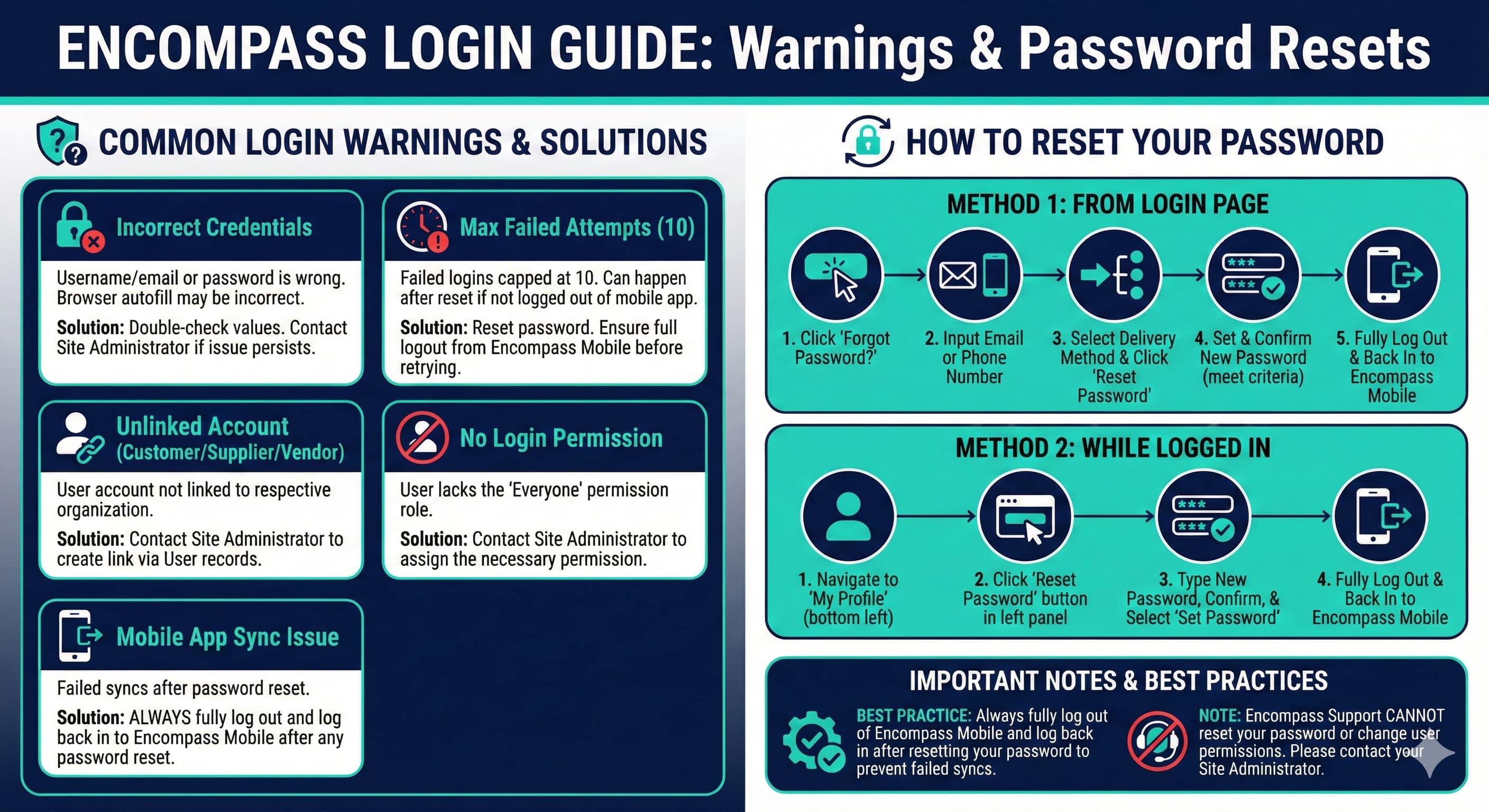
This resource outlines common login warning messages and their causes along with guided steps to reset the password, either from the login screen or while logged in.
Common Login Warnings
The username/email or password to log in is incorrect. Double-check the values entered and ensure that the browser is not autofilling these fields incorrectly. Please contact the site administrator if determined whether the issue stems from the username/email or your password (or both).
Exceeded the maximum limit of failed login attempts. Failed logins are capped at 10 attempts. Reset the password and try logging in again to regain access to the account.
NOTE - If users are receiving this message after resetting their password or do not believe it has failed to log in 10 times, ensure users have fully logged out of Encompass Mobile and logged back in with their most current password. If they are still reaching the limit without having made 10 login attempts, please contact the site administrator to ensure there are no other users tied to that email.
If logging in as a Customer User but the user account has not been linked to the respective organization. Contact the site’s administrator to have them create the necessary link between that user and organization via "Customers Users" records.
If logging in as a Supplier user but the user account has not been linked to the respective organization. Contact the site’s administrator to have them create the necessary link between the user and organization via "Suppliers Users" records.
If logging in as a Vendor user but the user account has not been linked to the respective organization. Contact the site’s administrator to have them create the necessary link between the user and organization via "Vendors Users" records.
The User does not have permission to log in to the site. To be granted permission to log in they will need to contact the site administrator and ask them to assign the ‘Everyone’ permission to that role.
How to Reset Your Password
Reset your password from the Encompass Login page
1. On the Login Page click the 'Forgot Password?'.
2. Input the Email or Phone number the the User Account.
3. Select the Delivery Method.
4. Click Reset Password.
5. Set the new password, confirm the password, then set the password.
Note: It has to meet the password criteria.
6. Be sure to always fully log out of Encompass Mobile and log back in after the password is reset.
Reset your password while logged in
1. Navigate to the My Profile section located on the bottom left corner.
2. Click the Reset Password button in the panel on the left side of the page.
3. Type in the new password that meets the requirements and confirm, then select Set Password.
4. Be sure to always fully log out of Encompass Mobile and log back in after your password is reset.
Best Practices
Fully log out of Encompass Mobile and log back in after resetting the password to prevent failed syncs.
Note: Encompass Support cannot reset your password, or change the users permissions in a system.