Minimum Version Required: 22.01
Pre-Conditions
Time Clock supports the Clock In/Clock Out feature for users with the ‘Hourly Employee’ permission.
Steps
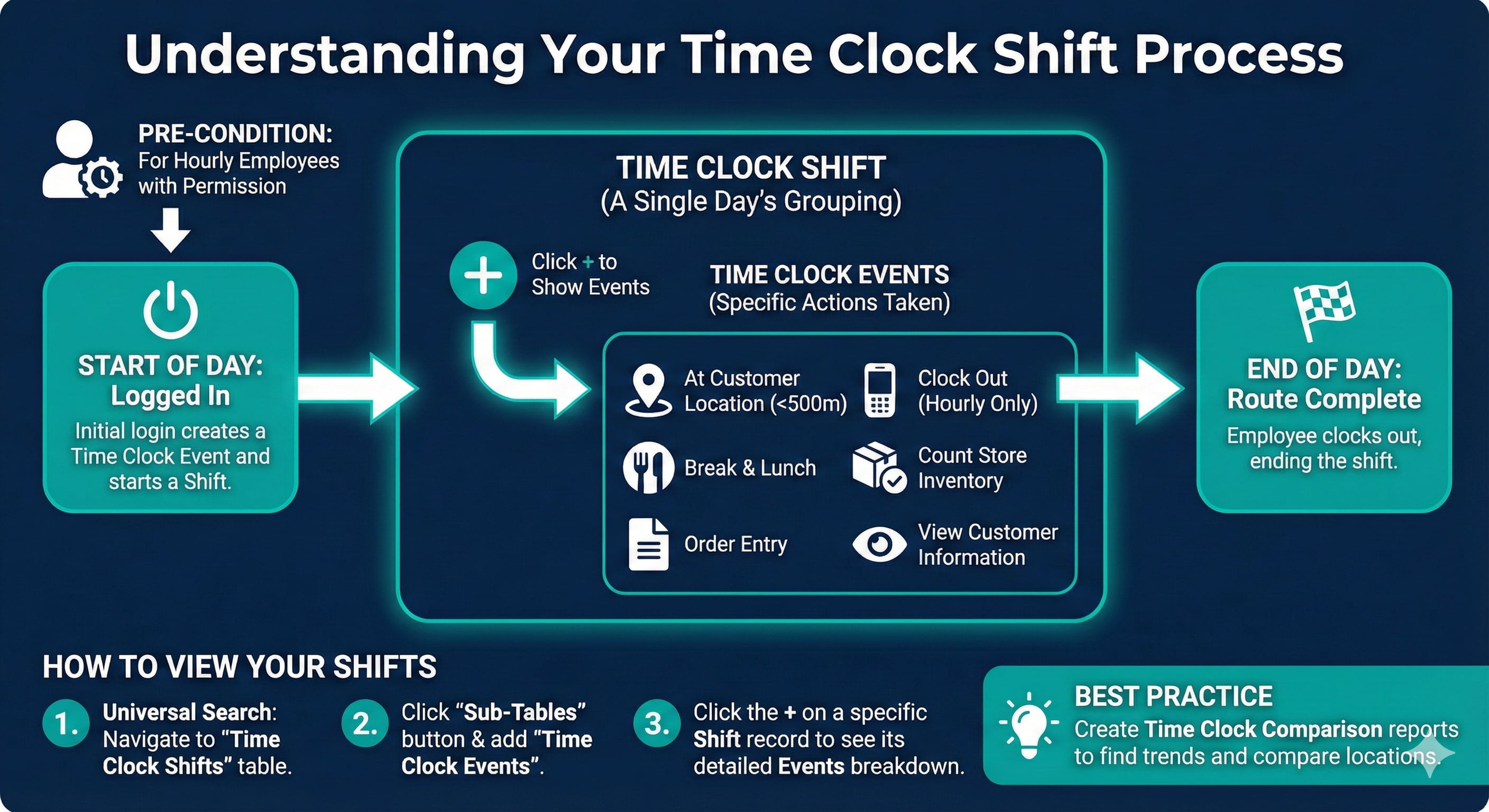
How to show Time Clock Shifts
1. Using Universal Search, navigate to the Time Clock Shifts table.
2. Click on the Sub-Tables button and add Time Clock Events.
3. Click + to show Time Clock Events on a specific Time Clock Shift.
4. A new Time Clock Shift record is created when a shift from yesterday exists and was greater then 3 hours or the start time is after 5pm.
5. Review Time Clock Activities:
At Customer Location - Enter customer event within 500 meters of the customer location
Break & Lunch - Enter a scheduled or ad-hoc break or lunch event
Clock Out - Select ‘Clock Out’ on handheld (hourly employees only)
Count Store Inventory - Enter values in ‘Take Inventory’ section for customer
Logged In - Clocks In (Subsequent logged on tasks are related to syncing)
Order Entry - Enter Invoice
View Customer Information - Enter customer event or select customer from home screen
End of Day - When employee clocks out; select ‘Route Complete’
Fields And Definitions
Time Clock Shift - A Single day's grouping of Time Clock Events, per user
Time Clock Event - Action taken (typically on the handheld)
Time Clock Activity - Categorization of actions
Hourly Employee Permission - Permission, allows you to clock in and out
TimeClockView - Permission, allow you to see your own time clock data
TimeClockAllUserView - Permission, allow you to see all time clock data
TimeClock Activity - What is the user doing?
Best Practices
Time Clock records specific activities performed by Users on Encompass Server or Encompass Mobile
Create a Time Clock Comparison report to find trends or compare locations