Minimum Version Required: 18.02
Pre-Conditions
Permissions needed:
Employee edit: required to add records on the Employee Commissions table
General Accounting Management: Required to add records on the Commision Groups table
Steps
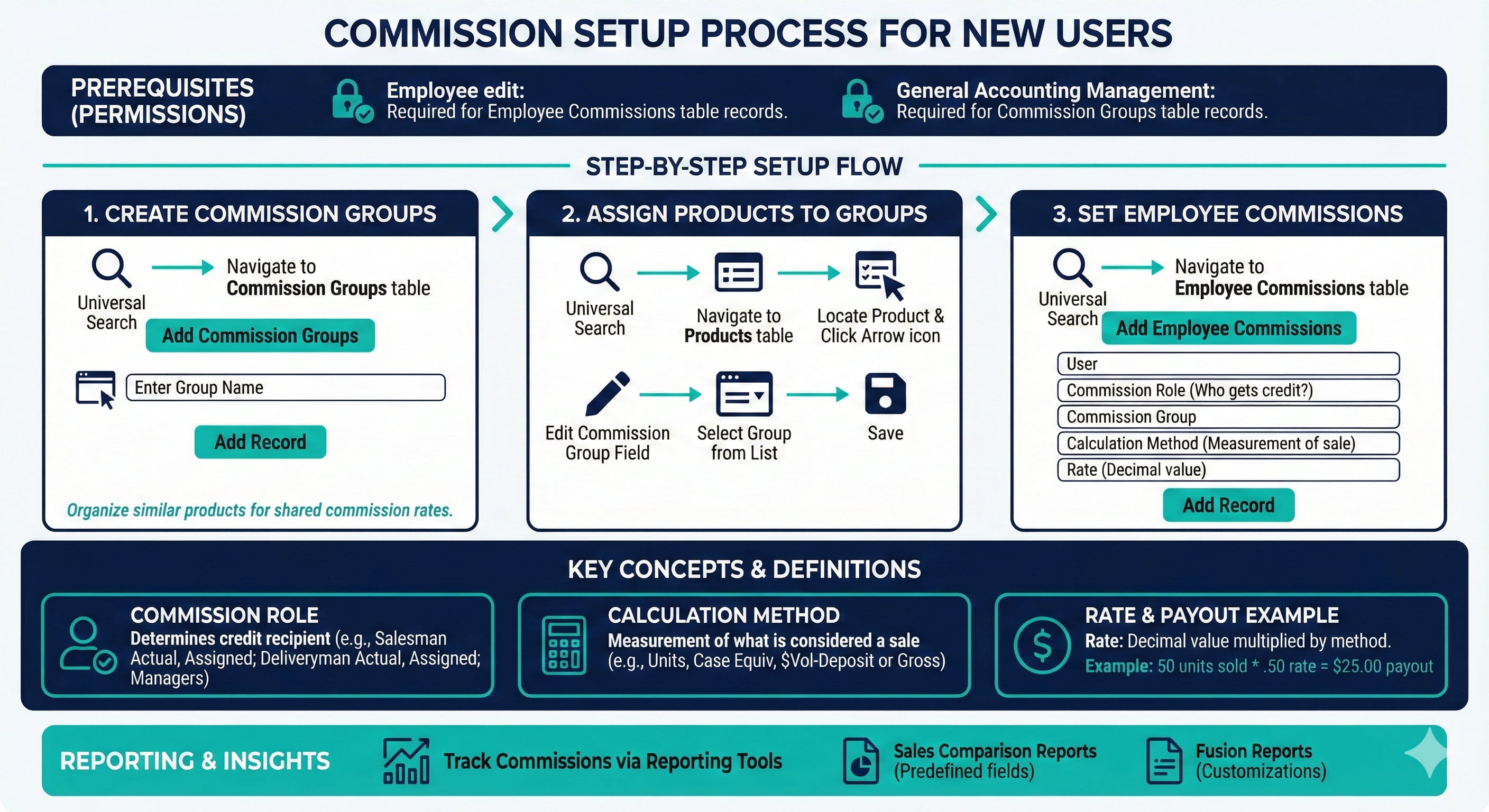
How to add Employee Commissions and Commission Groups
Navigate to the Commission Groups table using the Universal Search.
Click the Add Commission Groups button.
Enter the name of the Commission Group and click Add Record.
Navigate to the Products table using the Universal Search.
Apply filters to locate a product to be added to the Commission Group and click the Arrow icon to view the Product record.
Locate the Commission Group field and click the Edit icon.
Select a Commission Group from the list provided.
Click the Save icon.
Navigate to the Employee Commissions table using Universal Search.
Click the Add Employee Commissions button.
Enter values to all required fields displayed in the 'New Employee Commissions' form and click the ‘Add Record’ button when complete
- Commission Role: Allows for choice of how the user receives credit for a sale. If they are assigned to that route or the actual salesperson.
- Calculation Method: Measurement of what is considered a sale, then multiplied by the rate.
- Rate: Decimal value multiplied by the calculation method to determine dollar value commission.
Fields And Definitions
Commission Groups- Organization/grouping of commissioned products.
Commission Role- Determines what sales the user will receive credit for; their actual sales or sales for customers they are assigned to. Picklist options include:
- Salesman Assigned: The assigned salesman on the customer record
- Salesman Actual: The salesman who entered the invoice
- Deliveryman Assigned: The assigned deliveryman on the customer's route
- Deliveryman Actual: The deliveryman who actually completed the delivery
- Managers (1-4): Manager assigned to a user on the user record. See Managers Help Resource for information on custom manager roles.
Calculation Method- Measurement of what is considered a sale (Units, Case Equiv, $Vol-Deposit or Gross).
Rate- Decimal value multiplied by the calculation method to determine the commission payout.
Example-> 50 units sold * rate of .50 = $25.00 payout
Best Practices
Products assigned to a Commission Group should be of similar products types (liquor, kegs, beer, etc.) as they will be all commissioned at the same rate.
Rates are determined at the user level meaning that each user could have a different Rate for the same Commission Group
Once Commission Groups and Employee Commissions records are created, reporting tools are utilized to track commissions. Comparison Sales Reports have predefined fields for commissions. Any additional customizations to the Sales Comparison Report requires converting to a Fusion Report. See Sales Comparison Report and Converting to Fusion help resources for more information.