Minimum Version Required: 23.01
Pre-Conditions
Permissions needed:
Alert Manage: Create and edit custom alerts.
Fusion Edit: Create new Fusion reports and edit existing ones.
Table & Field Permissions: View permission for the field to be displayed.
This processes is recommended for Fusion 1 Certified users.
Steps
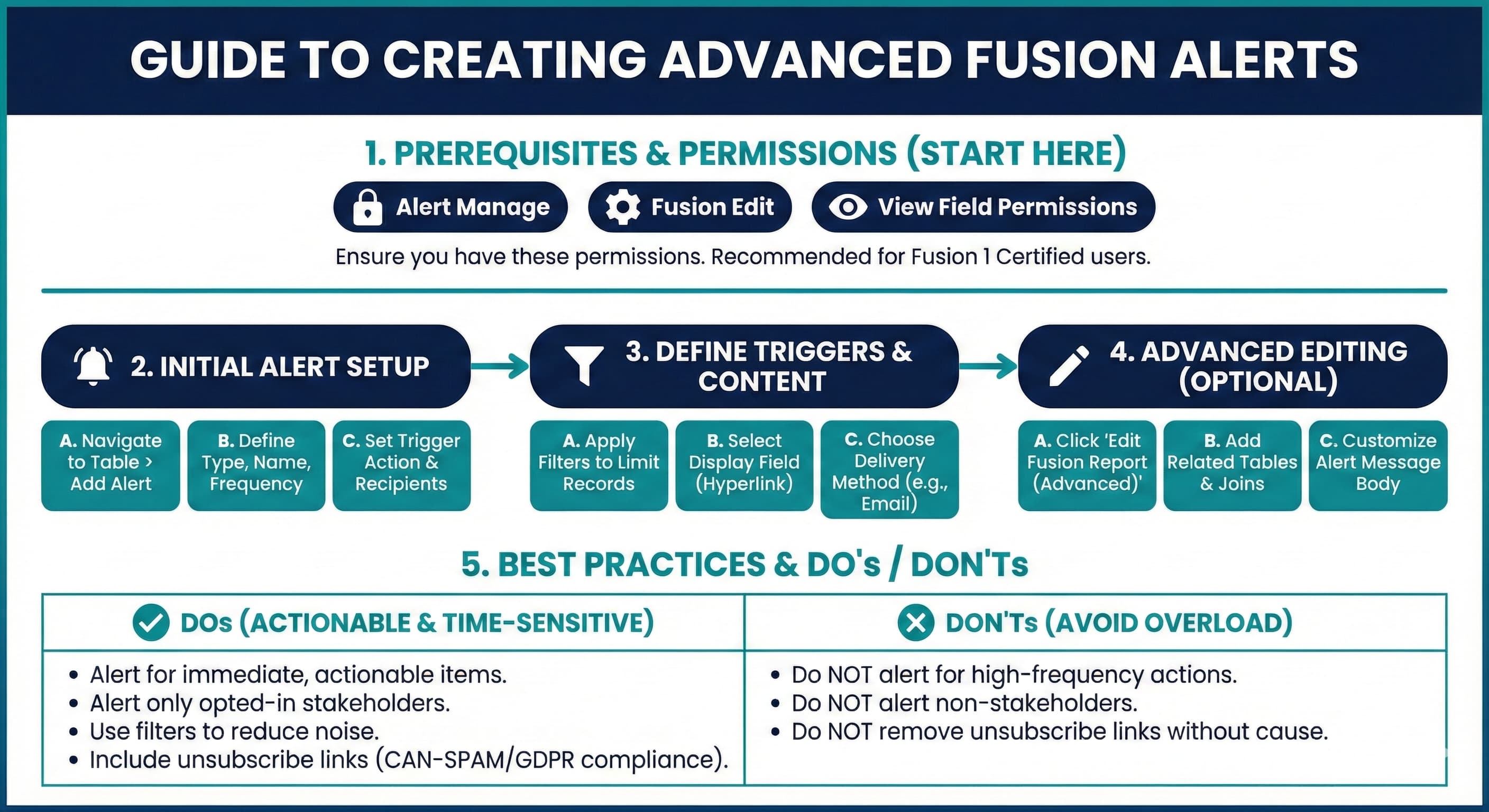
Advanced Fusion Alert Creation
1. Navigate to any table where you want the alert to trigger (for this example the Product Table is being used), and click the Add Alert button
2. Choose the Alert Type, assign a Name, enter Alert Message Body, and set Frequency
3. Choose the Action that will trigger the Alert and the Recipients. (The example alert will trigger if a Specific Product is Added)
4. Add any Filters to limit the records that will trigger the alert
5. Select the Display Field
6. Select Roles or Users to subscribe to the Alert. This can also be done later.
Advance Fusion Alert Editing
1. Click the Edit Fusion Report (Advanced) button in the top right
2. Add any additional tables needed for the report. (For this Example the Brands table)
Click Add Table next to the Base table (For this Example the Products table)
Click Add Related
Click the Box next to Brands
The Join will automatically be setup
3. Adjust any other table joins as needed.
For example, you may want to adjust how the Alert Users table is joined to the Users table if you want to alert the person who created the record's manager instead of a subscribed user.
4. Adjust the body of the alert message that will be sent. (For this example, add additional information about the product Brand)
Expand the expression builder for the body
Add or remove anything from the body
5. Save Changes. Once the edit is complete, click the Save Report Button on the top of the Fusion Edit Page
Fields And Definitions
Alert Type: The type of alert to be created (e.g., Table Update).
Alert Name: The name of the alert.
Alert Message Body: The message included in the alert that is sent.
Table: The table the alert is based on.
Action: The action that triggers the alert (Add or Edit).
Frequency: How often the alert is sent (e.g., Hourly).
When To Send: Controls when the alert is sent based on when a record is added or edited.
What To Send: Defines what content is included in the alert. A display field from the selected table or related table that will display as a hyperlink to the record.
Display Field: The field to be displayed in the alert that will be a hyperlink to the record.
Who To Send To: Determines the recipients of the alert. Either by Role or individual Users.
Delivery Method: The method used to send the alert (e.g., eChat, Email).
Filters: Limits what triggers the alert.
Operator: The operator used in the alert's filter conditions.
Value: The value used in the alert's filter conditions.
Auto-Subscribe Users: Automatically subscribe users to the alert.
Alert Users: Links alert users via the Alert ID.
SingleSendMD5: A combination of alert message elements such as Alert User, description, record IDs, Delivery Method, etc. These can be customized to meet your needs. This combination of elements converts into a near unique 32 character alphanumeric value. This value attaches a unique value to the combination of elements preventing duplicate messages.
Best Practices
Do not remove the unsubscribe link from the email message unless you are sure that the message does not have commercial intent.
- For more information, see the CAN-SPAM act (US), ACMA (Australia), CASL (Canada), and GDPR (EU)
Do Alert when an item needs immediate, time-sensitive attention.
Do Alert for actionable items.
Do Not Alert users who are not opted in or are not stakeholders.
Do Not Alert for high-frequency actions.